How to Turn a Signature into an SVG for Documents and Stamps
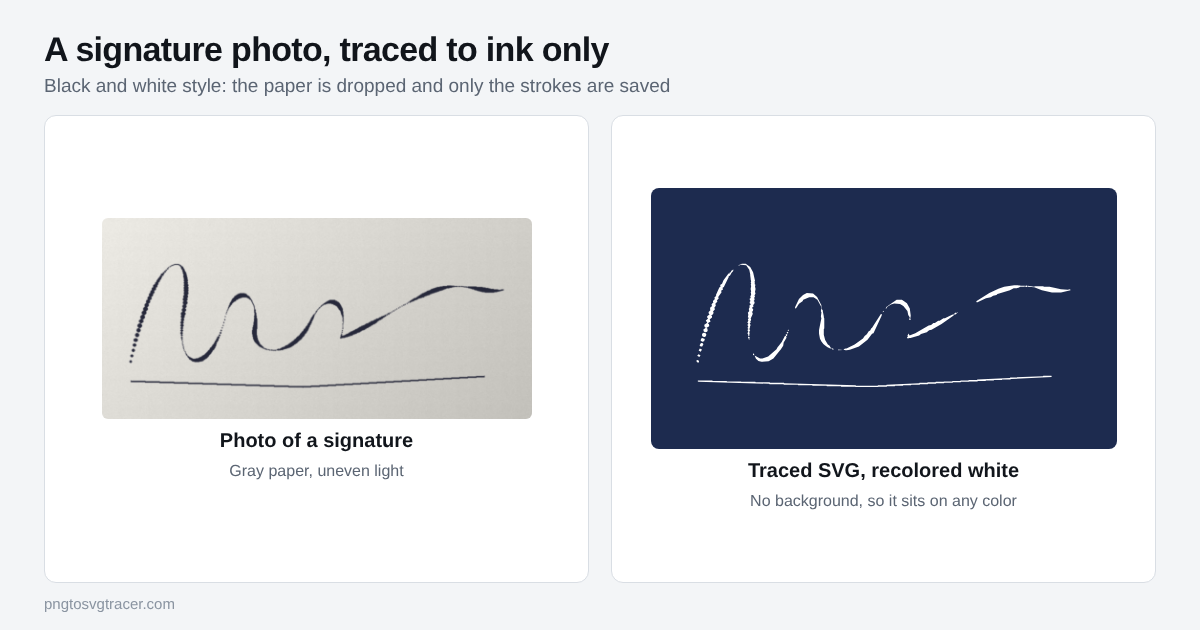
A signature saved as a JPG always carries a rectangle of paper around it. Drop it on a colored page and the rectangle shows. Turn it into an SVG made only of ink shapes and the paper is gone, and the signature stays sharp at any size.
Get a good source image first
The trace can only follow what the picture shows, so spend two minutes on the source.
- Sign on plain white paper with a fresh dark pen. A medium or bold tip works better than a fine one.
- Scan it, or photograph it straight on from above. Hold the phone parallel to the paper so the signature is not stretched.
- Use even light. Daylight near a window is fine. Avoid a shadow from your hand or the phone.
- Crop tight around the signature, with a small margin.
Sign it larger than you normally would. A big signature has thicker strokes in pixels, and thick strokes trace cleanly.
Trace it
- Open the signature to SVG page and drop your image in.
- Leave the style on Black and white shapes. This style saves only the dark parts, so the paper becomes empty space instead of a white shape.
- Move the Threshold slider until the preview looks like your signature. Pixels darker than the threshold become ink.
- Raise Remove small specks if dust or paper texture left dots around it.
- Download the SVG.
Nothing is uploaded for the free trace. It runs in your browser, so the image stays on your device.
What the Threshold slider does
Think of it as a line between ink and paper. Every pixel is somewhere between black and white. Pixels on the dark side of the line become part of the signature, and the rest is thrown away.
| Problem in the preview | Move the slider | Why |
|---|---|---|
| Thin strokes are broken or missing | Up | A higher threshold catches lighter gray ink |
| Paper texture or shadow turns into blotches | Down | A lower threshold keeps only the darkest pixels |
| Strokes look too fat | Down a little | Less of the soft edge counts as ink |
If one end of the signature is fine and the other is not, the light is uneven. Retake the photo instead of fighting the slider.
Using the SVG
On a document or PDF. Most editors and word processors accept SVG. Place the file, resize it, and it keeps its edges. If a program refuses SVG, export a PNG from a vector editor at the size you need.
Recoloring. The signature is one shape, so you can change the ink color in a vector editor or in Canva. Dark blue is a common choice.
Stamps and embossers. Stamp makers usually want a high contrast vector. Send the SVG and ask what they need. Make sure the signature is solid black on a transparent background and check the preview for tiny dots before you send it.
Engraving. A signature on a gift, a wallet or a wooden box works well because it is a single set of solid shapes. For file prep, see SVG for laser engraving. If your engraver takes DXF instead, trace the SVG here first and convert it afterward.
Mistakes that cost you time
Tracing a screenshot of a signature on a colored form. The colored background and form lines turn into shapes. Sign on clean white paper instead.
Using a tiny, blurry image. A 150 pixel wide thumbnail gives you lumpy strokes. Rescan at a higher resolution.
Leaving a lot of margin. Extra paper around the signature gives specks more room to appear. Crop first.
Thin pen, big enlargement. A hairline stroke has very few pixels to trace. Use a thicker pen.
Check it before you send it
The preview on a white page hides problems. Place the SVG over a colored shape and look for a box, stray dots or gaps in the strokes. The same check is described in how to make a transparent background SVG.
A note on where you use it
A traced signature is an image of your signature. Whether it is accepted on a contract, a government form or a bank document depends on the rules of whoever receives it, so ask them before you rely on it. Keep the file somewhere private, because anyone who gets it can place it on a page.
Related tools
Keep reading
- TutorialsHow to Make a Transparent Background SVG from a PNGTurn a PNG or JPG logo into an SVG with no white box behind it. Which setting to use, how to check it worked, and what to do when a pale background stays.October 15, 2026 · 4 min read
- Maker workflowsSVG for Laser Engraving: Prepare Files from a PNG or JPGHow to turn an image into an SVG or DXF for laser engraving and cutting, which format your software wants, and how to avoid size and line problems.October 12, 2026 · 2 min read