DXF Checker: Confirm Your DXF Will Open in CAD or Laser Software
A DXF can open without errors and still be wrong. The part may be the wrong size, the shapes may not be closed, or some pieces may be missing. A two minute check before you cut catches most of it.
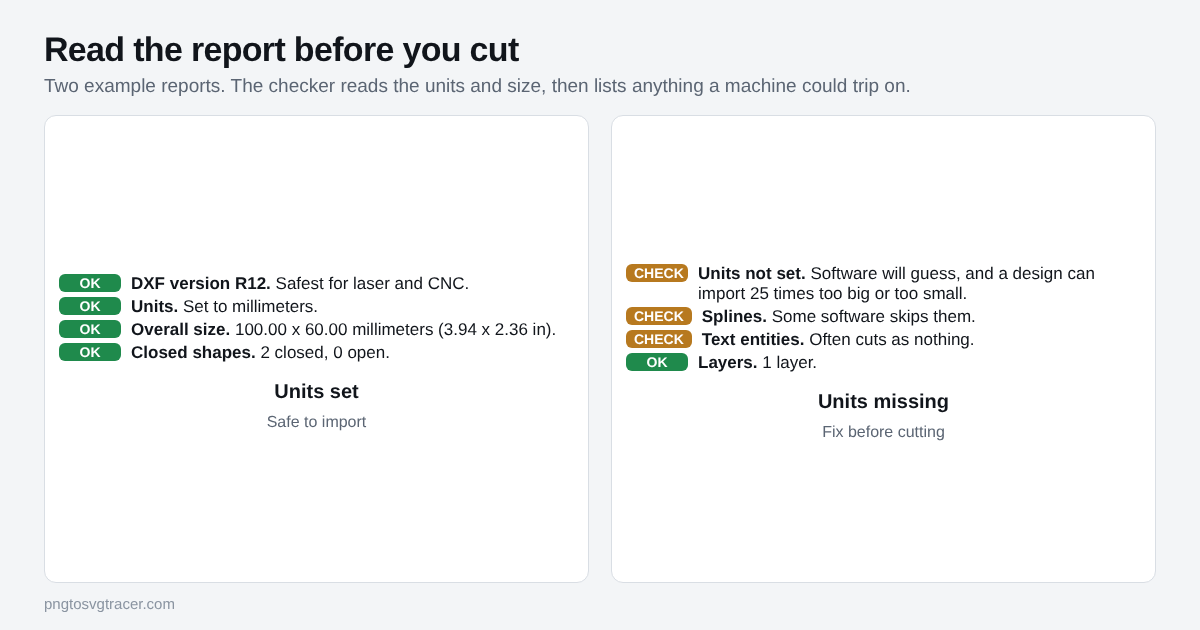
What you need
Any ASCII DXF. That covers the files made by SVG to DXF and PNG to DXF, and most files you get from CAD programs or other people. Binary DXF files are not supported. If you have one, save it again as an ASCII DXF. R12 is the safest choice.
Step 1: Drop the file into the checker
Open the DXF checker and add your file. It reads the file in your browser, so nothing is uploaded. It does not change the file either. You get a list with the problems first and the passing items after.
Step 2: Check the units and the size
This is the most important line in the report. A DXF often does not say whether its numbers are inches or millimeters. Your machine software then guesses. If it guesses wrong, a 100 mm part imports about 25 times too large or too small.
The checker shows the units the file declares and the overall size those units produce, in millimeters and in inches. Compare that to the size you meant. If the file says "Units not set", the size line can only show raw units, so you have to decide what they mean.
Two warnings help here. The checker flags a drawing under 5 mm or over 3000 mm as very small or very large, since that usually means a units mix-up. It also flags a drawing that sits very far from 0,0, which some machines handle badly.
Step 3: Read the version
The report lists the DXF version. R12 is the safest for laser, CNC and vinyl software. Newer versions open in most programs. If your machine rejects the file, export R12.
Step 4: Read the warnings
Each yellow or red item says what is wrong. These are the ones you will see most:
- Splines. Some laser and vinyl software skips them, so curves go missing. Export as polylines or arcs. R12 does this for you.
- Loose lines. Dozens of separate LINE entities and no polylines. Software cannot always join them into closed shapes, so the cut stops and restarts.
- Open polylines. An open shape cuts as a line, not as a shape you can fill or nest. The report counts closed and open shapes.
- Text. Text depends on fonts and often cuts as nothing. See why SVG text disappears in a DXF for the fix.
- Block references. If the machine software shows blank spots, explode the blocks.
- Hatches, dimensions and images. These are not cut paths. Remove them if they should not be in the job.
The report also lists the layers and counts each entity type, so you can see what the file really holds. A file with nothing in its entities section is reported as having no drawing, which explains the empty screen in your cutting software.
Step 5: Fix it and check again
Where you fix it depends on where the file came from.
- You made it from an SVG: go back to SVG to DXF. It writes an R12 DXF in millimeters, so the units and version items should pass. Scale to a width if you need an exact size. How to scale an SVG to an exact size in mm shows how.
- You made it from an image: trace it again with PNG to DXF and raise Remove small specks if you see loose bits.
- Someone else made it: ask them to export R12 with units set, or open it in your CAD program and fix it there.
Run the new file through the checker again. Then measure one dimension in your own software.
What a clean report does not tell you
The checker reads the file. It does not know your machine. It cannot tell you your kerf, your material or whether your software has a quirk with DXF. A clean report means the common problems are not there. Cut a test piece from scrap before the real sheet.
The short version
Check the units and size first, then the version, then the warnings. Fix the file at the source, check it again, and test cut. For choosing between formats, see SVG vs DXF.
Related tools
Keep reading
- TutorialsHow to Scale an SVG to an Exact Size in mm for Laser and CNCNeed a part to come out exactly 100 mm wide? How SVG size units work, why files import at the wrong scale, and how to set an exact width in a DXF.November 14, 2026 · 4 min read
- TroubleshootingWhy SVG Text Disappears in a DXF (and How to Fix It)Converted an SVG to DXF and the letters vanished? Why live text gets skipped, how to turn it into outlines in Inkscape, Illustrator or Figma, and how to check.October 30, 2026 · 3 min read
- ComparisonsSVG vs DXF: Which File Your Laser or CNC WantsSVG or DXF for your laser or CNC? What each file holds, when size in millimeters matters, and how to get either one from a PNG or JPG.October 30, 2026 · 3 min read