PDF to SVG: How to Pull a Logo Out of a PDF
A brand guide, an invoice or a signed contract often holds the only good copy of a logo. You cannot drag it out of the PDF, and a screenshot comes out soft. Here is a way to get a clean SVG from it.
What the tool actually does
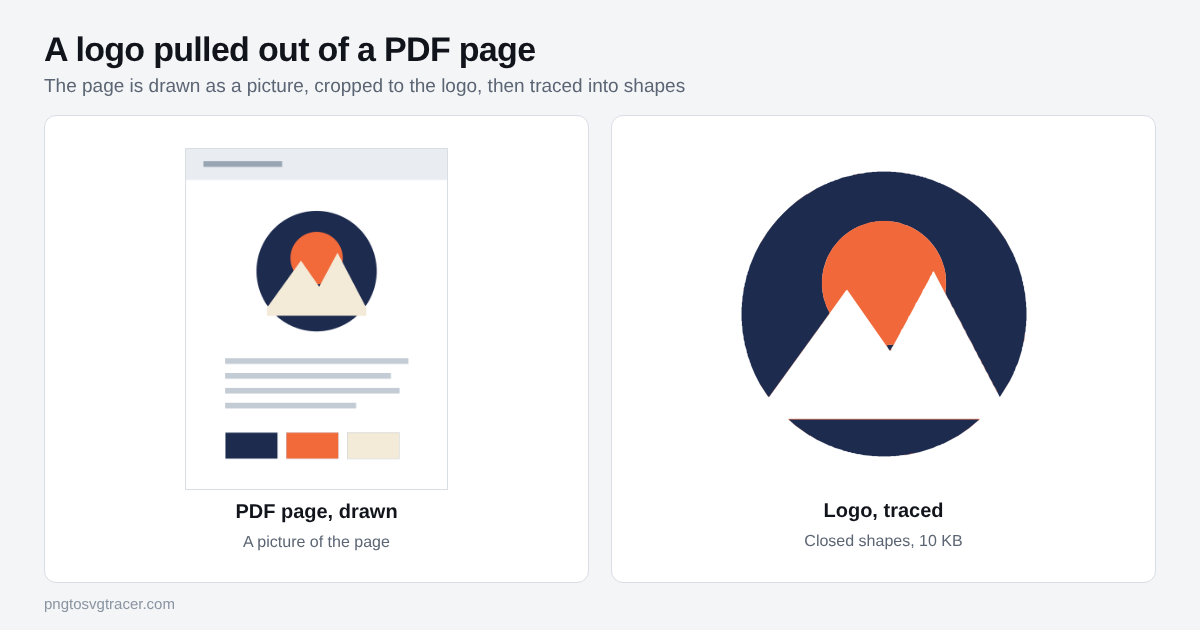
The PDF to SVG converter does not copy the original vector paths out of the file. It draws the page at high resolution in your browser, then traces that picture into new shapes. The file stays on your device.
That has two effects. It works on any PDF, including scans, because a scan is just a picture. And the result is a fresh trace, so it matches how the page looks, not how the original was built. Text on the page becomes shapes and can no longer be edited as text.
Step 1: Pick the right page
The tool converts one page at a time. Set Page to the number you want. If the logo is on page 4 of a brand guide, choose 4. Each page becomes one SVG, so for a second page, download the first and change the number.
Step 2: Choose a style
- Logo or icon (few colors): flat color artwork, like most logos. Set Colors to the number of colors you can see. Choosing the number of colors explains why a lower number usually looks cleaner.
- Black and white shapes: line drawings, signatures and anything you plan to cut. Raise or lower Threshold until thin lines hold together.
- Illustration: more colors, bigger file. Rarely what you want for a logo.
Step 3: Set Detail for thin lines
Detail controls how large the page is drawn before tracing. Standard is fine for bold logos. If the logo has thin lines or small gaps, try High. Very high keeps even more, but it is slower. A higher setting cannot invent detail the PDF never had.
Step 4: Keep the page from getting in the way
A full page of text and images makes a messy SVG. The tool has no crop control, so there are two ways to handle it:
- Trace the whole page, then delete the extra shapes in the SVG editor and keep the logo.
- Better for busy pages: save a PNG of just the logo from your PDF viewer first, then run it through the logo to SVG converter. You also get the white background option there. Why your traced logo has a white box covers it.
Step 5: Check the result
Zoom in to several hundred percent. Edges should stay crisp and curves smooth. Compare colors with the PDF. Look at small type inside the logo, because that is where tracing struggles first. If the edges look jagged, fix the trace with smoothing before you send the file anywhere.
When this will not work
- Password protected PDFs. Remove the password first. The tool cannot open locked files.
- Pages full of small text. The letters turn into shapes, and tiny type blurs.
- Gradients. They come out as flat color bands, not smooth fades.
- A logo that is already a tiny image in the PDF. If the PDF only holds a 150 pixel picture, the trace has that to work from. Ask for a better source.
Where the SVG goes next
Once you have it, the same file can go to a cutter, a printer or a website. Print shops often ask for a vector. Why printers and sign shops ask for a vector logo lists what to send. This site exports SVG, not PDF, EPS or AI, so say so if a shop insists on another format.
Related tools
Keep reading
- TutorialsBest Settings for Tracing a JPG Logo into a Clean SVGA JPG logo traces worse than the same logo as a PNG. These are the settings to change first, in order, and what each one does to the result.November 12, 2026 · 4 min read
- GuidesWhy Printers and Sign Shops Ask for a Vector LogoScreen printers, embroiderers and sign makers ask for vector logos. Learn why, which formats they accept, and how to get one from a PNG or JPG.November 16, 2026 · 2 min read
- TutorialsChoosing the Number of Colors When Tracing an Image to SVGThe Colors slider decides which shapes your SVG keeps. How to count the colors in your image, pick a number, and spot a count that is too low or too high.November 9, 2026 · 4 min read