How to Scale an SVG to an Exact Size in mm for Laser and CNC
You drew or traced a shape, sent it to your laser or CNC, and it came out 25 times too big or too small. The shape was fine. The size was a guess. Here is how to make it a number you chose.
Why size goes wrong
An SVG has no fixed size on its own. It has a drawing area and a set of numbers, and the size depends on how a program reads them. There are two places the numbers live:
- width and height, which can carry a unit such as mm, in or px.
- viewBox, which is the coordinate grid the shapes are drawn on.
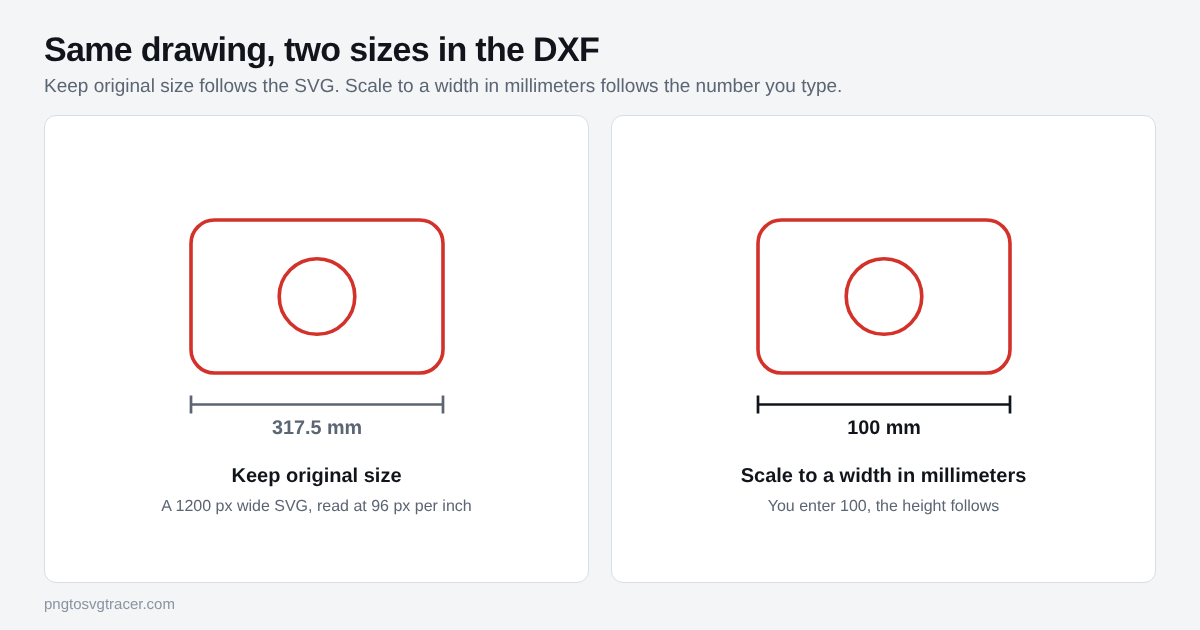
When width and height have a real unit, like `width="100mm"`, the size is clear. When they are missing, or just say px, programs have to assume a pixel density. The common assumption is 96 pixels per inch. A drawing that is 1200 px wide then reads as 12.5 inches, or 317.5 mm. Another program might assume 72 pixels per inch and read the same file as a different size.
DXF is simpler. It holds outlines at a real size, so the number you want has to be decided before or during the conversion.
The fast way: scale to a width in millimeters
- Open SVG to DXF and add your SVG.
- Set Size to "Scale to a width in millimeters".
- Type the width you want in the Output width box. The height follows the proportions of the drawing.
- Check the line under the preview. It reports the final size in millimeters.
- Download the DXF.
The width you enter is the width of the shapes themselves, edge to edge. Empty margin around the artwork does not count. If you need an exact height instead, divide it by the drawing's height-to-width ratio and enter that as the width, then read the reported size to confirm.
When to keep the original size instead
Choose "Keep original size" when the SVG was already made at a real size, such as a template exported from a design program with width and height in mm or inches. The tool reads width, height and viewBox and carries that size into the DXF. If the file has no units, it reads it at 96 pixels per inch, so check the number it reports before you trust it.
If you know the size you need, type it. If you are hoping the file already knows, verify it.
Starting from a PNG or JPG instead
If you do not have an SVG yet, skip the middle step. PNG to DXF traces the picture and asks for the output width in millimeters up front. Enter the real width you need, trace, and the DXF is written at that size. Use a clean, high-contrast image so the outline is one tidy shape and not a cloud of specks. Lettering that is only a picture also avoids the live text problem in why SVG text disappears in a DXF.
Check before you cut
- Open the DXF in your software and measure the overall width with its measure tool.
- If the number is off by about 25.4 times, your software imported the file as inches. Change the import units to millimeters. The DXF from this site is written in millimeters.
- Measure one small feature too, like a hole. If the width is right but the hole is wrong, the artwork was drawn off, not the scale.
- Cut a test piece from scrap or cardboard. Hold the real part against the real thing it has to fit.
Our DXF checker reads the units and size of a DXF you already have, which is handy when a file arrives from someone else and you are not sure what they used.
Kerf and tolerance
A DXF at the right size is the outline. Your machine cuts a line with some thickness, called kerf on a laser, or a bit radius on a CNC. A 100 mm square cut on the outside of the line can end up slightly smaller or larger depending on the offset setting in your software. Scaling does not change that, and the tool does not compensate for it. Do a test cut and adjust offset in your cutting software.
The short version
An SVG does not carry a trustworthy size by default. Type the width you want in millimeters, read the size the tool reports, and measure the DXF in your own software before cutting. For choosing between the two formats in the first place, see SVG vs DXF, and for engraving workflows, SVG for laser engraving.
Related tools
Keep reading
- ComparisonsSVG vs DXF: Which File Your Laser or CNC WantsSVG or DXF for your laser or CNC? What each file holds, when size in millimeters matters, and how to get either one from a PNG or JPG.October 30, 2026 · 3 min read
- TroubleshootingWhy SVG Text Disappears in a DXF (and How to Fix It)Converted an SVG to DXF and the letters vanished? Why live text gets skipped, how to turn it into outlines in Inkscape, Illustrator or Figma, and how to check.October 30, 2026 · 3 min read
- Maker workflowsSVG for Laser Engraving: Prepare Files from a PNG or JPGHow to turn an image into an SVG or DXF for laser engraving and cutting, which format your software wants, and how to avoid size and line problems.October 31, 2026 · 2 min read