How to Import an SVG into Canva (and Fix Common Problems)
A PNG logo goes soft when you stretch it in Canva. An SVG does not, because it stores shapes instead of pixels. Getting an SVG into Canva is easy. Getting one that behaves once it is there takes a little care when you trace it.
Step 1: Trace the logo
Open the PNG to SVG for Canva page and drop in your PNG or JPG. Use the largest, cleanest copy of the logo you have. A small screenshot gives lumpy edges in any tracer.
- Set Style to Logo or icon.
- Set Colors to the number of colors in the logo. A three color logo should be three colors here.
- Check the preview against your original. If the edges look rough, raise Smoothing a little.
- If you see stray dots, raise Remove small specks.
- Download the SVG.
For a plain image to SVG conversion without the Canva notes, the image to SVG page does the same trace.
Step 2: Upload it to Canva
In Canva, open the Uploads tab, choose Upload files, and pick the SVG. When it finishes, click it to drop it onto your design. Drag a corner handle to scale it. It should stay sharp at any size.
Keep the file simple
Canva's upload guidance for SVG files says to keep them under 3 MB, to avoid textures and gradients, and to group shapes of the same color. A trace from this tool already fits most of that. Each color becomes one path, the fills are flat, and there are no gradients.
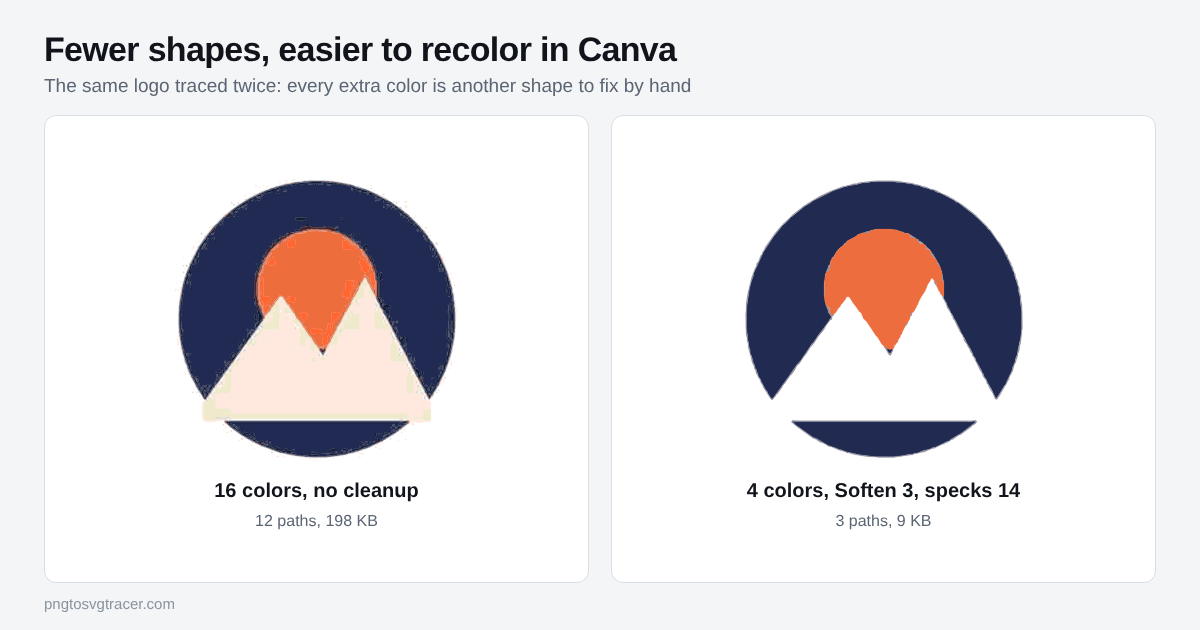
The one thing you control is how many shapes you ask for. In the picture above, the same noisy JPG was traced twice. With 16 colors and no cleanup the result was 12 paths and about 198 KB. With 4 colors, Soften at 3 and Remove small specks at 14, it was 3 paths and about 9 KB. The second one is easier to recolor and far less likely to hit a size limit.
Fixing common problems
Canva rejects the file. Check the size first. If it is large, trace again with fewer colors and a higher Remove small specks value. If you made the SVG in another program, it may carry gradients or other features Canva does not accept. A fresh trace from the flat artwork avoids that.
A white box sits behind the logo. The trace kept the white background as a shape. Tick Make white background transparent and trace again. The full walkthrough is in how to make a transparent background SVG from a PNG. A quick test is to place the logo over a colored shape in Canva. If a square shows around it, the background is still there.
The logo has too many pieces to recolor. Every extra color in the trace is another shape you have to change by hand. Lower the Colors slider until the logo still looks right, then trace again. This also removes pale halos around the edges that come from JPG compression.
The edges look rough or lumpy. The source was probably small or blurry. Raise Smoothing or Soften to even the edges, or find a larger copy of the logo. Tracing cannot add detail that was never in the pixels.
Gradients turned into bands. This tool makes flat color areas only, so a gradient becomes a few steps of color. If the gradient matters, keep that part as a PNG in Canva and use the SVG for the flat parts of the design.
The file is bigger than you expected. See how to make an SVG file smaller. Fewer colors, more Smoothing and a higher speck filter do most of the work.
What this will not do
A trace turns a flat logo into a clean SVG. It does not turn a photo into an editable illustration. Photos come out posterized, with blocks of flat color where the smooth tones used to be. For logos, icons and line art, though, the result is a small file that you can scale, recolor and reuse across designs.
Where to go next
If you are not sure what is inside the file you just made, read what an SVG file is and how to open one. Then keep the SVG somewhere you can find it. You can reuse it in Canva, on a website, or on a cutting machine without tracing it again.
Related tools
Keep reading
- TutorialsHow to Make a Transparent Background SVG from a PNGTurn a PNG or JPG logo into an SVG with no white box behind it. Which setting to use, how to check it worked, and what to do when a pale background stays.October 19, 2026 · 4 min read
- TroubleshootingHow to Make an SVG File Smaller: Fewer Points, Same LookTraced SVGs can get huge. Learn which settings shrink the file the most, what to remove, and how small a clean logo SVG should really be.October 12, 2026 · 2 min read
- GuidesWhat Is an SVG File? Format, Uses and How to Open OneSVG is a vector image format used on websites, in design tools and by cutting machines. Learn what is inside one, how to open it, and when to use it.October 18, 2026 · 2 min read