How to Make a PNG Transparent Before Tracing It to SVG
The trace option that clears a background only handles plain white. If your logo sits on cream, light blue or any other solid color, the tracer treats that color as part of the artwork and draws a big shape behind it. The cleanest fix is to take the background out of the PNG first, then trace the result.
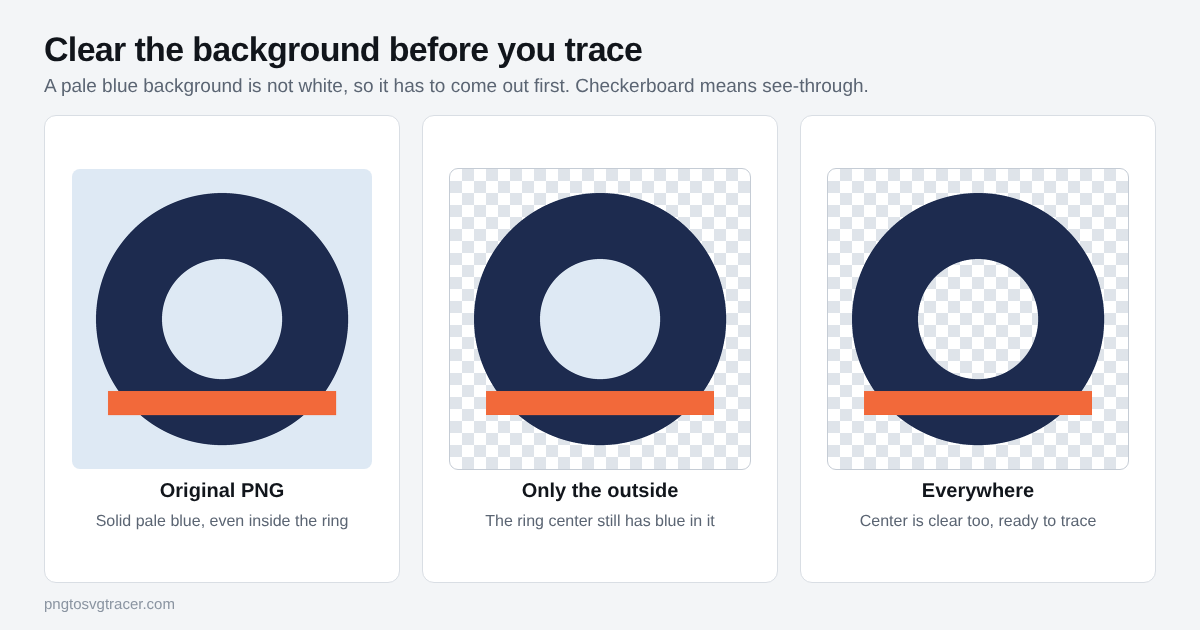
When this is the right move
Use this when the background is one flat color: a logo on a tinted page, a drawing on colored paper, a product icon on a gray tile. The tool removes one color and colors close to it. That works well for logos, text, icons and line drawings.
It is not a cutout tool for photos. A person on a street, hair, or a busy scene has no single background color to remove. Do that in an image editor first.
Step 1: remove the background
- Open the Transparent PNG tool and drop in your file. PNG, JPG, WebP, GIF and BMP all work.
- The tool guesses the background color from the corners of the image. Check the preview. If it picked wrong, click the background in the picture to choose the exact color.
- Raise Tolerance until the leftover background disappears. A good starting range for a logo is 20 to 40. Too high and it starts eating into the logo's lighter colors, so stop as soon as the edge looks clean.
- Set Edge softness between 10 and 30. It fades the edge a little so it is not jagged. Too low gives hard stair-steps. Too high leaves a faint fringe of the old color.
- Download the PNG. The file keeps your original name with "-transparent" added.
The tool runs in your browser, so the image stays on your computer.
Step 2: decide on "Where to remove it"
This one setting is the difference between the middle and right pictures above.
Only the background around the subject clears the color that connects to the outside edge. Color that is enclosed, like the center of a ring or an "O", stays. That is what you want when the enclosed color is real, such as a white eye in a mascot.
Everywhere in the image clears every pixel that matches, including the centers of letters. Use this when the logo is a single-color shape and you want true holes, like a stencil or a cut file.
If you are unsure, try Only the background first. If the centers of letters still show the old color, switch to Everywhere.
Step 3: trace the transparent PNG
Now open the PNG to vector page and drop in the file you just saved. Transparent pixels count as empty, so no background shape is drawn. Set Colors to the number of colors in the logo itself, not counting the background you removed.
Check the result by placing the SVG on a dark or colored background. A box you could not see on white shows up right away. If something is still there, why your traced logo has a white box walks through the other causes.
Settings that go wrong
| What you see | Likely cause | Change |
|---|---|---|
| Pale halo around the logo | Tolerance too low | Raise Tolerance by 5 to 10 |
| Light parts of the logo vanish | Tolerance too high | Lower Tolerance |
| Jagged edge | Softness too low | Raise Edge softness |
| Old color still inside letters | Mode is Only the background | Switch to Everywhere |
| Holes you wanted filled | Mode is Everywhere | Switch to Only the background |
What to know about JPG sources
A JPG has no transparency, and compression leaves slightly off colors around every edge. Those edge pixels sit just outside your tolerance, so a thin outline can survive. Raise Tolerance a little and Edge softness a little, and look again. The JPG logo settings guide covers the tracing side. If you can find the original PNG, start from that instead.
Why bother when the trace has its own option
For a plain white background, you do not need this step. The built-in option does it. This step earns its place when the background is any other color, or when you want to keep a clean transparent PNG for other uses besides the trace. The basic white-background walkthrough is in how to make a transparent background SVG from a PNG.
Related tools
Keep reading
- TroubleshootingWhy Your Traced Logo Has a White Box and How to Remove ItYour traced SVG still has a box behind it with the transparent option on. Find which of four causes you have, from cream backgrounds to fake checkerboards.November 10, 2026 · 4 min read
- TutorialsHow to Make a Transparent Background SVG from a PNGTurn a PNG or JPG logo into an SVG with no white box behind it. Which setting to use, how to check it worked, and what to do when a pale background stays.November 8, 2026 · 4 min read
- TutorialsBest Settings for Tracing a JPG Logo into a Clean SVGA JPG logo traces worse than the same logo as a PNG. These are the settings to change first, in order, and what each one does to the result.November 12, 2026 · 4 min read