How to Export a Traced SVG as a PNG at the Right Size
You traced a logo into an SVG, and now a site, a slide deck or a marketplace listing wants a PNG. The SVG has no fixed size, so the one decision you have to make is the width. Get that right and the PNG is sharp. Get it wrong and you are back to blurry edges.
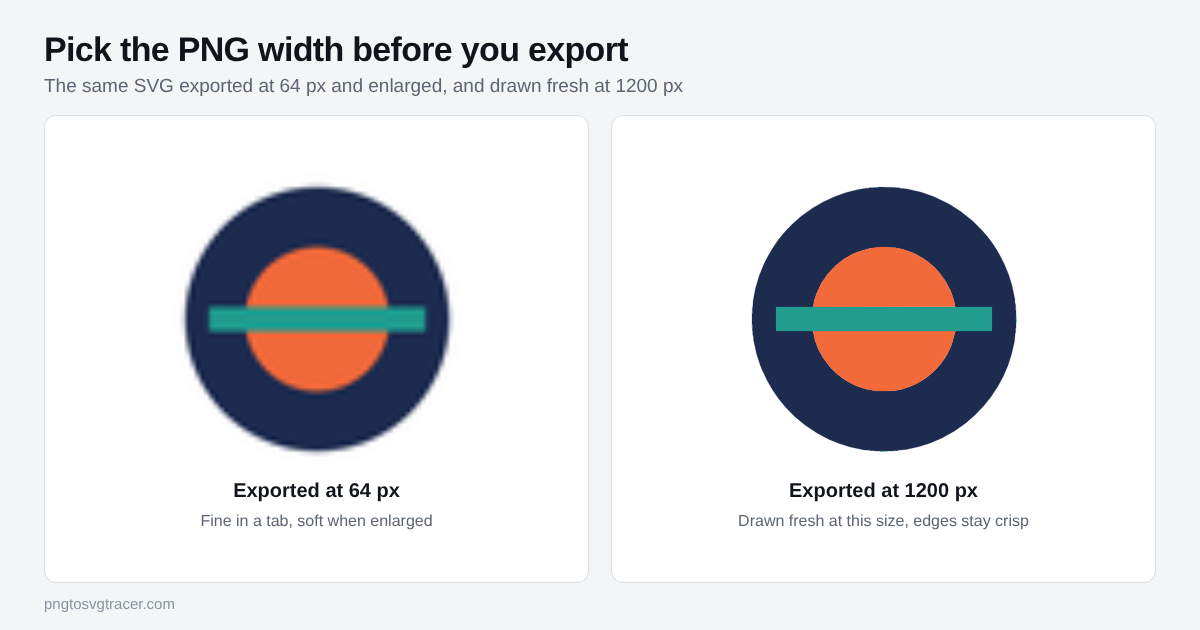
Why the width matters
A PNG is a grid of pixels. An SVG is shapes that get drawn at whatever size you ask for. When you export, you fix the grid for good. A 64 pixel PNG looks fine in a browser tab and soft anywhere bigger. You cannot fix that later by enlarging it, because the extra pixels are guesses.
The good news is that the SVG is still the master. Export as many sizes as you need from the same file.
Export it step by step
- Open the SVG to PNG converter and drop in your .svg file.
- Set File type to PNG.
- Type a width in pixels. The height follows the shape of the SVG. The limit is 8000 pixels.
- Choose a background: Transparent, White, Black or a custom color.
- Download the file.
It runs in your browser, so the file stays on your device.
Which width to pick
Start from where the PNG will be used, then go a bit bigger than you think you need.
| Where it goes | Width to try |
|---|---|
| Email signature | 400 to 600 px |
| Website header (shown at about 200 px wide) | 400 px, so it stays sharp on high-density screens |
| Social profile picture | Check the platform's current size and export at that, or larger |
| Slide deck | 1200 to 2000 px |
| Print at 300 dpi | Inches wanted times 300. A 4 inch wide logo is 1200 px |
Platform sizes change, so look up the current requirement instead of trusting a table. When in doubt, export larger. Most sites shrink a big PNG without trouble, and none of them can enlarge a small one cleanly.
If the logo goes on a website, an SVG or WebP is often a better fit than a big PNG. The website logo formats guide covers when each one wins.
Transparent or colored background
Leave Background on Transparent for any logo you will place on other colors. Transparent PNG and WebP both keep it. JPG cannot be transparent, so it fills with white.
If a white box shows up around your logo, check the SVG before blaming the export. The box was probably traced as a shape. The transparent background guide shows how to remove it at the tracing step, and then you export again.
Use White or a custom color when the destination does not handle transparency well. Some print portals and marketplace listings turn transparent areas black.
Fonts and linked images
If your SVG has live text, the export uses whatever fonts are on the device doing the export. A missing font gets swapped for another one and the lettering changes. Convert text to outlines in your design software first. SVGs made by tracing a PNG are not affected, because the lettering is already shapes.
Images linked from outside the file will not load. Embedded images do.
Check the PNG
Open the finished file at 100 percent and look at the edges. Then put it on a dark page and a light page. Dark halos or a faint box mean the SVG had a background shape. Soft edges mean the width was too small, so export again at a bigger number.
Where this fits
The tracing is the step that makes every later size possible. Trace once from your best copy, keep the SVG, and export PNGs as needed. For tiny browser-tab icons, how to make a favicon from a logo SVG goes through the simplifying step first. If you still only have the PNG, the PNG to vector converter makes the SVG.
Only trace a logo you own or have permission to use.
Related tools
Keep reading
- GuidesWebsite Logo Formats: SVG vs PNG vs WebPWhich file format should your website logo be? A plain comparison of SVG, PNG and WebP, with real file sizes from one logo and when to trace to SVG.November 11, 2026 · 4 min read
- TutorialsHow to Make a Transparent Background SVG from a PNGTurn a PNG or JPG logo into an SVG with no white box behind it. Which setting to use, how to check it worked, and what to do when a pale background stays.November 8, 2026 · 4 min read
- TutorialsHow to Make a Favicon From a Logo SVGTurn a logo into a favicon: trace it to SVG, simplify it for tiny sizes, and add the PNG files that browsers, phones and search results still ask for.November 8, 2026 · 4 min read