Website Logo Formats: SVG vs PNG vs WebP
Your logo is probably the most reused image on your site. It sits in the header, the footer, emails, social cards and the browser tab. Picking the wrong format shows up as a blurry header on a phone or a logo that will not open in a design tool.
The short answer
Use SVG for the logo itself if you have one. Keep a PNG as a backup for places that cannot take SVG, such as some email clients and social upload forms. Use WebP when all you have is pixels and you want the smallest file.
What each format is
PNG stores pixels with no quality loss. It handles transparency, opens everywhere, and gets sharp edges right. The cost is file size and a fixed resolution. Enlarge it past its real size and the edges go soft.
WebP also stores pixels, but it can squeeze them much harder than PNG. Modern browsers show it fine. Older design programs, print shops and cutting software often do not open it. If you have one, see what to do with WebP logos saved from websites.
SVG stores shapes and colors as text. It stays sharp at any size, from a 24 pixel header icon to a billboard. It can be recolored, and cutting machines and print software read it.
The numbers from one logo
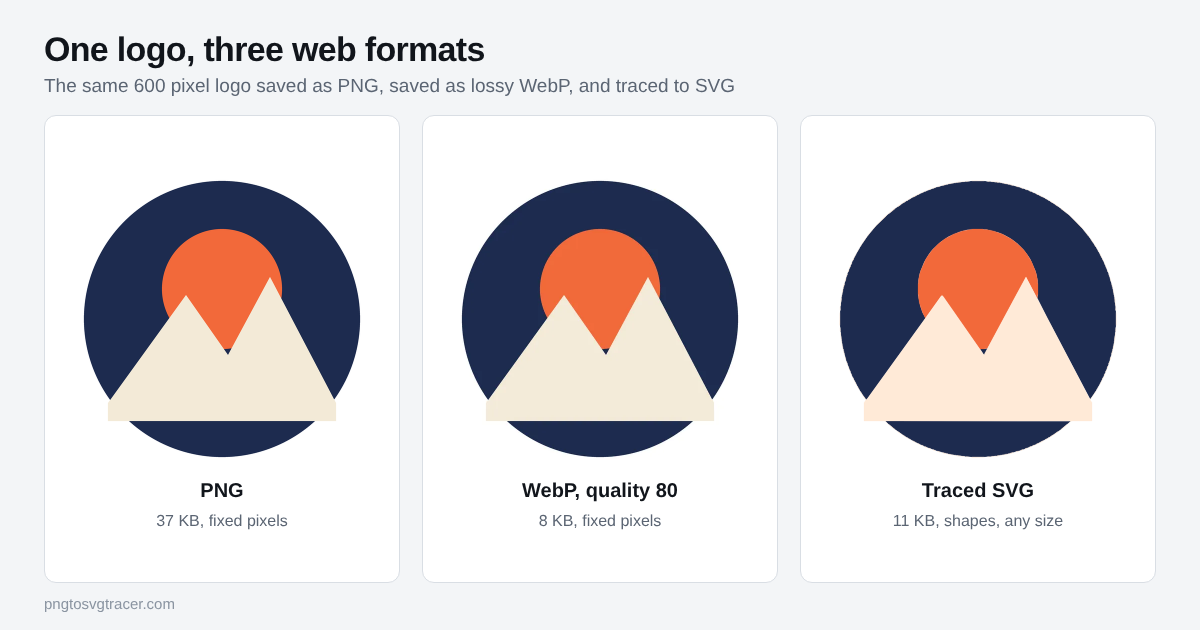
The figure above is a 600 pixel logo with four flat colors. Here is what each version weighed.
| Format | File size | Scales sharply |
|---|---|---|
| PNG | 37 KB | No |
| WebP, quality 80 | 8 KB | No |
| SVG, traced | 11 KB | Yes |
WebP won on bytes. The SVG was close, and it is the only one of the three that does not blur when you enlarge it. Your results will differ. A logo with more colors and curves makes a bigger SVG, and a simple logo makes a tiny one. Do not assume SVG is always the smallest.
When each one is the right call
- Header and footer logo: SVG. One file covers every screen density, so you stop shipping a 1x and a 2x version.
- Email signature: PNG. Many mail apps ignore SVG.
- Social profile and link preview images: PNG or JPG. Most platforms want a pixel format.
- Print, embroidery, vinyl, laser: SVG. These need shapes. A PNG makes whoever runs the machine trace it first.
- Logo with a soft shadow or gradient: PNG or WebP. Tracing flattens gradients into bands, so keep that art as pixels.
If you only have a PNG or WebP
Trace it. Open the PNG to vector converter and drop in the file. It starts on the Logo or icon (few colors) style, which suits most logos. Set Colors to the number of flat colors in your logo. In the figure, six kept the cream mountains from blending into the white. Compare with the preview slider before you download.
Two things to know about the result:
- The trace follows the pixels you give it. A 150 pixel avatar gives blocky shapes, so find a larger copy first.
- Fine tonal differences in a pale color can shift slightly. The cream in the figure came out a little warmer. Check brand colors in your editor and set the exact value there if it matters.
For a WebP source, the WebP to SVG tool does the same job. If a white box shows up behind the traced logo, the transparent background guide shows how to remove it.
Before you put an SVG on a website
Open the file in a browser tab first. If it looks right there, it will look right on the page. Then check the size. A traced logo with many colors can get heavy, and making an SVG file smaller covers the settings that help.
For the PNG versus SVG question in more depth, read PNG vs SVG: when to use each.
One last note on rights. Only trace a logo you own or have permission to use.
Related tools
Keep reading
- ComparisonsPNG vs SVG: When to Use Each (and When to Convert)PNG and SVG solve different problems. See when each one is the right choice for logos, icons, websites, printing and cutting machines.November 6, 2026 · 2 min read
- TutorialsWebP to SVG: What to Do With Logos Saved From WebsitesSaved a logo from a website and got a WebP your design software will not open? Here is how to turn it into a clean SVG, and which settings matter.October 28, 2026 · 4 min read
- TroubleshootingHow to Make an SVG File Smaller: Fewer Points, Same LookTraced SVGs can get huge. Learn which settings shrink the file the most, what to remove, and how small a clean logo SVG should really be.November 7, 2026 · 2 min read