Old BMP and GIF Graphics: How to Bring Them Into Modern Tools
Somewhere on an old hard drive there is a logo, a button or a piece of clip art that only exists as a .bmp or a .gif. It is tiny, it looks rough when you enlarge it, and some of your tools do not like it. An SVG fixes most of that.
Why these formats cause trouble
A BMP stores every pixel with no compression, so files are large and many programs treat them as an afterthought. A GIF holds at most 256 colors, which is why old web graphics look stepped and crunchy.
Both are grids of pixels, so they go soft or blocky when enlarged. A traced SVG describes shapes instead, so it stays sharp at any size, and most modern tools open it.
Step 1: Pick the right tool page
Use the BMP to SVG tool for bitmaps and the GIF to SVG tool for GIFs. They trace the same way. Both run in your browser.
An animated GIF traces only its first frame. If you want another frame, save it as a PNG first.
Step 2: Start with a low color count
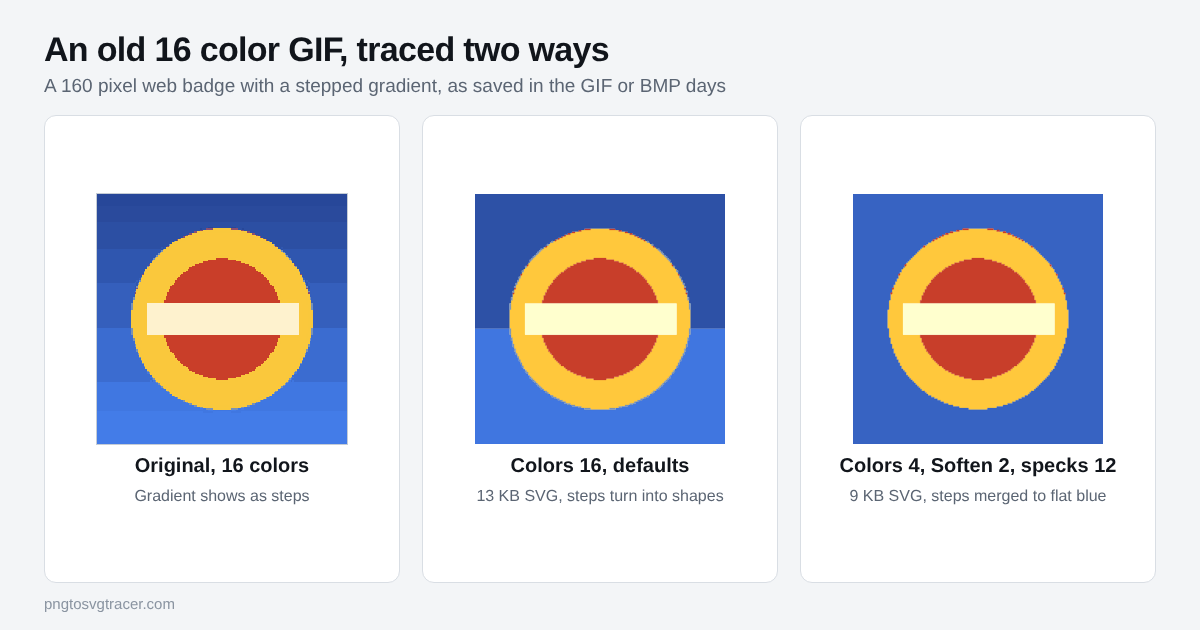
Old graphics were drawn with few colors on purpose. Leave the style on Logo or icon (few colors) and count the colors you can actually see. A button with a blue background, a yellow ring and a red center is three or four colors, not sixteen.
- Colors: set it to the number you can see, plus one for a shadow or highlight if there is one.
- Soften: try 1 or 2. Old graphics often have faint steps in what was meant to be a smooth gradient. A little blur lets the tracer treat each step as one area.
- Remove small specks: raise it to around 10 or 12 if you see stray dots from dithering, which is the dot pattern some old editors used to fake shading.
Check the preview with the comparison slider. In the figure, the first trace keeps the gradient as separate blocks. The second turns it into one clean blue.
Step 3: Deal with the white box and the fringe
Most old logos sit on a white square. Tick Make white background transparent so the SVG has only the artwork. The transparent background guide covers what that option does and its limits.
GIF transparency was on or off for each pixel, with nothing in between. That can leave a pale halo where the art met the old page color. If a light outline survives the trace, delete it in a vector editor.
Step 4: Small files need a bigger start
If the source is very small, such as a 48 pixel button, the tool enlarges it before tracing. That enlarging step blends pixels, which rounds the corners. For plain icons that is fine. For hard-edged pixel graphics, enlarge it yourself first using nearest neighbor, as the pixel art guide explains.
What to expect
- You get clean, flat shapes. You do not get your original pixels back one for one.
- Photos saved as BMP or GIF come out posterized. That is how the tracer works on photos, so choose a higher color count and accept the poster look.
- Text in the image becomes shapes, not editable type. Retype it if you need to edit it.
- A BMP is uncompressed, so the SVG is usually far smaller than the file you started with.
Where to use the SVG
Once you have the file, Canva and Figma both take it, and Inkscape lets you tidy the shapes by hand. Cutting software such as Cricut Design Space reads SVG too. If the trace looks lumpy, this troubleshooting list is the next stop.
Quick reference
| Problem | Change |
|---|---|
| Gradient comes out as blocky steps | Lower Colors, raise Soften to 1 or 2 |
| Stray dots from old dithering | Raise Remove small specks to 10 to 12 |
| White box behind the art | Tick Make white background transparent |
| Pale halo on a GIF | Delete it in a vector editor |
| Animated GIF, wrong frame | Save that frame as a PNG and trace the PNG |
| Tiny source with rounded corners | Enlarge with nearest neighbor first |
Related tools
Keep reading
- TutorialsPixel Art to SVG: How to Keep the Hard EdgesTraced pixel art often comes out rounded and blobby. Enlarge it the right way first and you get square, clean SVG shapes. Steps and settings inside.November 5, 2026 · 4 min read
- TutorialsHow to Make a Transparent Background SVG from a PNGTurn a PNG or JPG logo into an SVG with no white box behind it. Which setting to use, how to check it worked, and what to do when a pale background stays.October 20, 2026 · 4 min read
- TutorialsBest Settings for Tracing a JPG Logo into a Clean SVGA JPG logo traces worse than the same logo as a PNG. These are the settings to change first, in order, and what each one does to the result.October 28, 2026 · 3 min read